
Control Widget: Theme & Panels
New Widget Co.Personalization
4.440.00 Reviews
- Version
- 1.3.1
- Installs
- 10.00M
- Age Rating
- Everyone
Screenshots
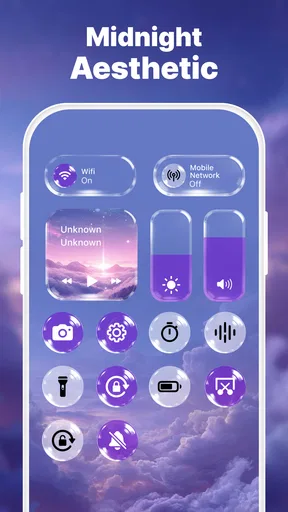
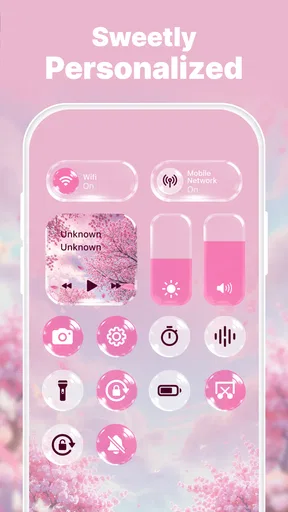
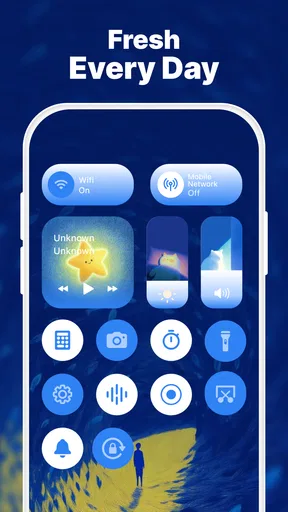
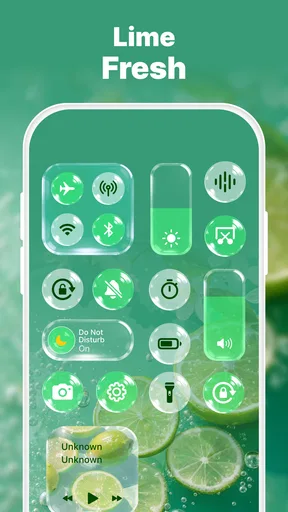
Our Review of Control Widget: Theme & Panels
 Analysis by Appyee
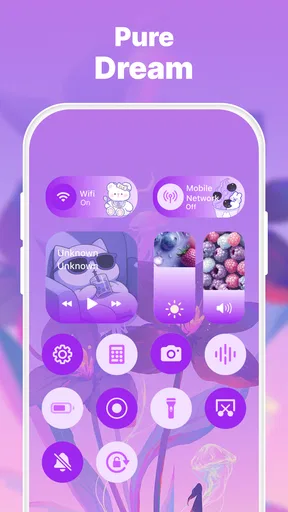
I spent time with Control Widget: Theme & Panels as a personalization app rather than treating it like a simple wallpaper or icon pack. Its main idea is to turn the phone’s control area into something more visually deliberate, using themed widget and panel designs instead of leaving the standard layout untouched. That makes it interesting for anyone who notices the small details of their interface and wants the controls they use every day to feel more consistent with the rest of the phone.
The app comes from New Widget Co. and is free to start, with optional purchases priced from $0.99 to $5.99 per item. It is rated for Everyone, runs on Android 8.0 and later, and the current version is 1.3.1. The app has built a substantial audience, with over 10 million installs and an average rating of 4.4 from around 15 thousand ratings. Those figures suggest that the concept is easy for many people to understand, but they do not remove the need to look closely at how much control the app actually gives you and how much of the experience depends on optional content.
What the app is really trying to change
The useful way to think about this app is as a visual layer for quick-access controls. It is not trying to replace every part of the operating system. Instead, it focuses on the area you reach when you want to adjust or check something quickly. That narrower purpose is a strength because the app has a clear job: make a frequently used control surface look more personal and, where the available layouts help, easier to recognize at a glance.
The selection of more than 200 aesthetic themes gives the app a broader range than a single-purpose widget with only a few color choices. I found that distinction important. A basic widget tool may let you change a background or accent color, but a theme-based app encourages you to choose an overall mood first and then judge whether the controls fit that direction. For someone building a coordinated home screen, that can be more useful than adjusting individual elements one by one.
At the same time, visual variety should not be confused with deeper system customization. The app’s store summary points to themes, widgets, and a panel, so I would approach it as a presentation tool for those areas rather than as a universal replacement for Android’s own settings. If your priority is changing every system icon, notification behavior, or launcher animation, this is probably not the right category of app for you.
My first impression of the setup
The most important early decision is not which theme looks best in a preview. It is deciding what you want the control area to do for you. Some people want a calm, low-contrast appearance that disappears into the wallpaper. Others need obvious visual separation between controls because they use them quickly while walking, commuting, or handling several tasks at once. A decorative theme that looks excellent in a screenshot may be less comfortable when you need to identify a control immediately.
I recommend beginning with a theme that has clear contrast and familiar visual grouping. After using it for a day, you can decide whether a more expressive style is worth the trade-off. This is one of the app’s less obvious lessons: personalization is not only about appearance. The arrangement, contrast, and visual weight of controls affect how confidently you use them when you are not looking at the screen for long.
Another practical point is to judge the design in both bright and dim surroundings. A theme that feels balanced in a well-lit room may appear too faint at night, while a high-contrast design can feel harsh in a dark environment. I would not make a final choice from a preview alone. The real test is whether the panel still feels readable during the ordinary moments when you reach for it without thinking.
Where it fits among familiar alternatives
Android already provides its own control panel and widget options, and those built-in tools remain the sensible choice for people who value simplicity above all else. They are generally the least distracting route because they do not ask you to maintain another layer of visual customization. If the default appearance is acceptable, there may be no strong reason to add this app.
Control Widget: Theme & Panels makes more sense when the standard controls feel visually disconnected from your home screen. Compared with a launcher-focused customization tool, it is more concentrated: you are not redesigning the whole phone, but you can give one high-traffic area a more coherent identity. Compared with a standalone widget pack, it offers a wider theme concept rather than only adding one or two decorative shortcuts.
That focus also creates a limitation. A launcher or full icon-pack setup may offer more complete visual consistency across the home screen, app drawer, and system shortcuts. If you already use a carefully matched launcher configuration, this app may either complement it or expose small differences that make the overall interface feel less uniform. I would choose it for targeted improvement, not as the foundation of a complete Android redesign.
Trust, controls, and the moments that deserve attention
When I judge a control-panel theme, I look beyond its first impression and consider the choices that shape everyday use: what I enable, what I buy, and how easily I can return to a familiar setup. A useful habit is to change one thing at a time, so I can tell whether a new look actually helps or simply feels novel. That practical approach also makes it easier to decide which moments deserve a closer look.
What I would check before settling on a design
For a personalization app, trust is not only about whether the themes look good. It is also about whether the app gives me understandable choices and lets me decide what to keep active. I pay attention to the screens shown during setup, the way optional content is presented, and whether the app makes it clear which parts are essential to the experience. A free starting point is welcome, but optional purchases mean I would review each item before confirming anything rather than assuming every theme is included.
The purchase range is modest enough to make experimentation possible, but repeated small purchases can still add up. My advice is to choose a visual direction first and avoid buying several themes simply because their previews are attractive. A single design that works with your wallpaper, icons, and lighting is more valuable than a collection you rarely use. This is especially relevant here because the app’s appeal comes from browsing visual options, and browsing can make unnecessary additions feel more useful than they are.
I would also keep the operating system in mind. The app supports Android 8.0 and later, which makes it accessible to many older devices, but appearance and behavior can still vary between Android versions and phone manufacturers. If a control surface behaves differently from the preview, I would first check whether the phone’s own interface conventions are influencing it. That is a general compatibility consideration, not a reason to assume the app is faulty.
Permissions, data, and visible choices
I do not treat a personalization app as automatically harmless simply because it changes appearance. Any app that interacts with widgets or a control panel deserves a quick review of the permission prompts and the settings it asks me to enable. I would grant only what is clearly connected to the feature I want, and I would revisit those choices if I stop using the app. The safest habit is to make decisions from the permission screen and the app’s own visible controls, not from assumptions about what a theme app must or must not access.
The same caution applies to account-related screens and purchases. If the app presents a sign-in choice, I would consider whether an account is genuinely needed for the part I want to use, and I would avoid creating one merely to browse. If a purchase is involved, I would confirm the item and the account used by the device’s app store before completing it. These steps are simple, but they keep the user in charge when an attractive theme encourages an impulsive tap.
Data-sensitive moments are most likely to appear around setup, optional content, and any request that goes beyond displaying a widget or panel. I would read the wording of those prompts carefully and decline anything that does not make sense for my intended use. I also prefer apps that make it easy to remove a theme, disable a widget, or return to the standard controls. That reversibility matters more to me than having the largest possible theme library.
How much agency the app gives you in daily use
The best personalization tools let me experiment without making the original phone experience difficult to recover. I would test one theme at a time, use it through a normal day, and keep track of whether it improves quick access or merely adds decoration. If the panel becomes harder to read, I would switch back rather than trying to adapt to a design that is fighting the phone’s normal use.
A useful workflow is to match the panel to the way you use the device, not just to the wallpaper. For example, someone who changes connectivity, brightness, or sound settings frequently may benefit from a layout with strong separation and easily recognized visual cues. Someone who rarely opens the control area may care more about the home-screen widget’s appearance than about rapid interaction. The same theme can therefore feel successful for one person and unnecessary for another.
I would also avoid changing several parts of the phone at once. If you install a new launcher, icon pack, wallpaper, and control theme together, it becomes difficult to know which change improved the experience and which created friction. Applying this app as a single, controlled adjustment makes its value easier to judge and makes troubleshooting less confusing if the result feels inconsistent.
Everyday scenario: the commute test
Imagine checking your phone before leaving home, then changing brightness or sound while outside. In that situation, a visually attractive panel is useful only if its controls remain easy to identify in changing light and with limited attention. I would choose a theme with clear contrast, avoid overly subtle decoration, and test it while moving between indoor and outdoor spaces. If the design slows down a task that was previously automatic, the customization has failed its practical test.
There is another scenario where the app can be worthwhile: a shared household device used by someone who benefits from a calmer, more recognizable interface. A consistent visual style can make the phone feel less cluttered, particularly when the standard panel looks busy or unfamiliar. However, I would still prioritize readability and predictable behavior over a highly stylized appearance. Personalization should reduce hesitation, not create a new learning curve.
Who should use it, and who should skip it
I would recommend trying this app if you enjoy refining your Android interface, want a themed control area rather than a plain default panel, or prefer making one focused change instead of rebuilding the entire launcher. It is also a reasonable option for people who like comparing visual styles and are comfortable testing a design for a day before committing to it.
I would skip it if you are satisfied with the standard Android controls, dislike managing optional content, or need a complete system-wide redesign. It is also not ideal for someone who wants every shortcut to behave exactly like a manufacturer’s native control panel. In that case, the built-in tools are likely to be more predictable, while a full launcher solution may be a better fit for broader customization.
Users with older phones should pay attention to how their specific Android interface handles widgets and panels. Support for Android 8.0 and later is helpful, but it does not guarantee that every manufacturer’s visual conventions will feel identical. I would install it with realistic expectations: the app can change the presentation of the supported areas, but it cannot erase every difference between phone brands.
My verdict after weighing the trade-offs
Control Widget: Theme & Panels succeeds because it has a clear, appealing focus. It gives personalization-minded Android users a way to make a frequently accessed control area feel less generic, and the large theme selection makes it easier to find a style that matches a particular home-screen setup. I especially like the idea of treating the panel as part of the phone’s overall visual language rather than as an isolated utility.
Its weaknesses are just as clear. A theme can look better without making the phone faster to use, and optional content requires restraint if you want the free starting experience to remain simple. Compatibility and readability also matter more than screenshots suggest. The right design is the one that stays understandable in real conditions, not necessarily the one with the most dramatic preview.
For me, the app is worth trying when the default control area feels dull or visually out of place. I would begin with the free experience, review every visible permission and account choice, test one theme in normal daily situations, and buy only if a particular design genuinely improves the way I interact with the phone. The strongest reason to install it is controlled, reversible personalization—not the promise of changing everything.
New Widget Co. has made a focused personalization app rather than an all-purpose Android overhaul. That focus will appeal to users who want a polished control widget and panel without committing to a complete launcher transformation. If that describes you, the free entry point makes a careful trial easy. If you mainly want reliability and zero visual maintenance, Android’s standard controls remain the better answer.
Verdict
Strengths of Control Widget: Theme & Panels
- Quick access to brightness, volume, Wi‑Fi, and other system controls.
- Customizable widget layouts help match different home-screen setups.
- Theme options make the control panel fit various wallpaper styles.
- Useful shortcuts can reduce the need to open Android settings repeatedly.
- Compact panels keep frequently used tools available at a glance.
Limitations of Control Widget: Theme & Panels
- Some advanced controls may depend on the Android version or device brand.
- Widgets can occupy noticeable home-screen space, especially larger layouts.
- Extra permissions may be required for certain shortcuts or system actions.
- Frequent background updates could affect battery life on some devices.
- The interface may feel crowded when many controls are enabled together.
Other Releases by New Widget Co.
View All
Emoji Battery Icon Customize
Personalization4.5
Similar Picks in This Category
View All
Microsoft SwiftKey AI Keyboard
SwiftKey4.3

Wallpapers
Google LLC4.1

Zedge™ Wallpapers & Ringtones
Zedge4.7

Yandex Browser with Alice AI
Direct Cursus Computer Systems Trading LLC4.3

Ringtone Maker:create ringtone
Big Bang Inc.4.7

Fonts Keyboard
Fonts Keyboard3.9
Frequently Asked Questions
What is Control Widget: Theme & Panels used for?
Control Widget: Theme & Panels is designed to customize and organize quick-access controls on a mobile device. It can provide themed panels or widgets for functions such as connectivity, brightness, volume, media playback, and other shortcuts. The exact tools available may depend on the device, operating-system version, selected theme, and the permissions granted during setup.
Is Control Widget: Theme & Panels compatible with both Android and iPhone?
Compatibility should be checked carefully before downloading because widget and control-panel features work differently on Android and iOS. Android generally allows more extensive customization and overlay-style controls, while iPhone features are usually limited by Apple’s widget and system-access rules. Confirm the app’s current store listing, supported operating-system versions, and device requirements before installing it.
Does the app require special permissions to work correctly?
It may request permissions or system access needed to display widgets, remain available in the background, respond to shortcuts, or provide control-panel functions. These permissions should be reviewed individually rather than accepted automatically. Some features may not work if access is denied, although basic customization could still remain available. Avoid granting permissions that do not appear relevant to the app’s purpose.
Can I customize the appearance of the widgets and control panels?
Customization is one of the main reasons to use Control Widget: Theme & Panels. Depending on the version, users may be able to select themes, change colors, adjust layouts, choose panel styles, and place shortcuts according to their preferences. However, the number of free designs, available icons, personalization options, and advanced controls can vary between updates or may require an in-app purchase.
Is Control Widget: Theme & Panels free to download and use?
The application may be available to download without an upfront charge, but some themes, panels, tools, or customization features could be restricted behind advertisements, subscriptions, or one-time purchases. Check the official Google Play or App Store listing for current pricing before installing. It is also worth reviewing the privacy information and cancellation terms if the app offers recurring premium access.
